

A safer network for smart devices begins with knowing what connects to it and deciding what each device should be allowed to do. Lights, plugs, speakers, cameras, appliances, televisions, hubs, and sensors may share a router, yet they do not all need the same access. A practical design protects network administration, uses supported encryption, keeps software current, limits unnecessary connections, and leaves the household with a system it can understand.
No router setting, security product, or network layout can guarantee safety. Device design, vendor support, household behavior, account security, and new vulnerabilities all affect risk. The goal of smart home network security is to reduce avoidable exposure and make unusual behavior easier to notice. Follow current documentation for the router, internet gateway, access points, and every connected device; menu names and capabilities vary significantly.
Start with the router, not the gadgets
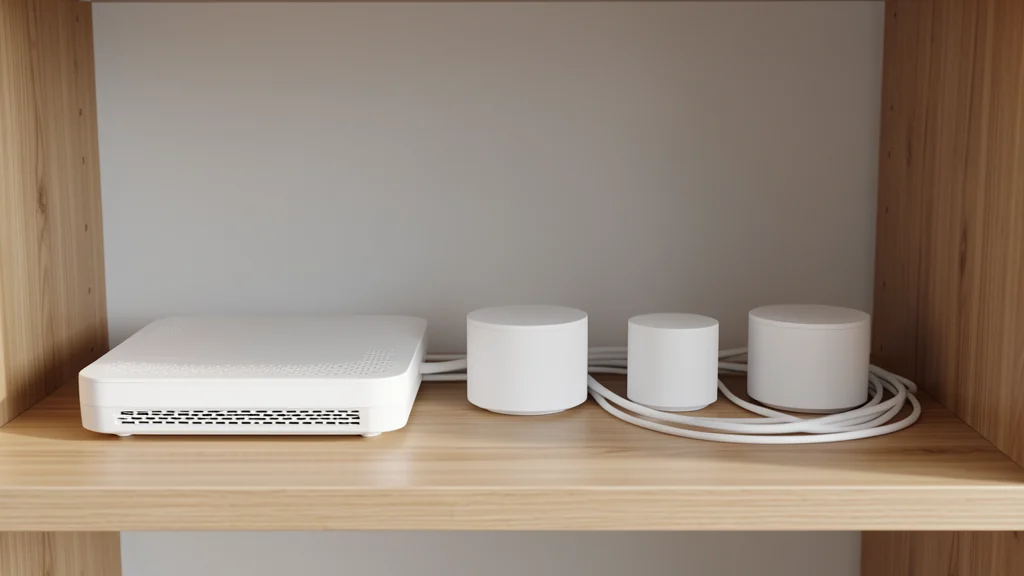
The router or combined provider gateway is the control point for most home traffic. Identify its exact model, who owns it, how its administration page or app is reached, and whether the internet provider manages its updates. Save the official support page and recovery instructions. If another router sits behind the provider gateway, document which device performs routing, Wi-Fi, firewall, and address assignment so future troubleshooting does not become guesswork.
Open the administration interface from a trusted device on the home network, using the address and procedure in the manual. Avoid search ads and unsolicited support links. Change any default administrator name when the model permits, and always replace the default administrator password. Make that password long, unique, and unrelated to the Wi-Fi passphrase. Store it in a password manager rather than on a visible label. The household can use the process in this family password manager guide to assign access and recovery responsibly.
Enable multifactor authentication for the router’s cloud account when the vendor offers it. Review who has administrator access and remove old household members, installers, or unused app sessions. Disable administration from the public internet unless there is a specific, understood need and the vendor documents a secure method. Local administration is usually sufficient for routine homes. If remote access is essential, limit it as much as the product allows and review its activity regularly.
Choose Wi-Fi protection that every required device supports
Set a unique network name that does not reveal a resident’s name, exact address, router model, or password. Choose a long, unique Wi-Fi passphrase and share it only with people and devices that belong on that network. Do not reuse the administrator password. A guest network offers a cleaner way to give visitors internet access without distributing the household’s primary credential.
For wireless security, use WPA3 Personal when the router and all devices that must join that network support it. If older equipment cannot connect reliably, use WPA2 Personal with AES on the network that serves it, when supported. Avoid obsolete WEP, original WPA, and WPA2 modes based on TKIP. Mixed WPA2/WPA3 mode can help during a transition, but its behavior depends on the router and clients; follow vendor guidance and test each required device rather than assuming compatibility.
Turn off Wi-Fi Protected Setup, often labeled WPS, if it is not needed. Also review whether the router creates secondary networks, open hotspots, or automatic device-sharing services by default. The FTC’s home Wi-Fi guidance likewise recommends changing default identifiers and passwords, using router encryption, keeping software updated, and disabling features that are not needed. Apply those principles through the controls actually documented for your equipment.
Decide what belongs together
Network separation reduces the paths available between devices, but only if the router implements it correctly and the household can maintain it. A sensible basic layout has a trusted network for personal computers and phones, a guest network for visitors, and, when practical, a separate IoT network for smart devices. Some consumer routers call this an IoT network; others use guest networks, profiles, or virtual networks with different isolation rules.
| Network group | Typical members | Access to allow | Review question |
|---|---|---|---|
| Trusted | Personal computers, phones, tablets | Internet and only necessary local services | Does every user need administrator-level device access? |
| IoT | Plugs, bulbs, appliances, hubs, sensors | Internet and selected controller or hub traffic | Can devices operate without reaching trusted computers? |
| Guest | Visitor devices | Internet only where isolation is supported | Are local devices and router administration blocked? |
| Special-purpose | Work equipment or local-only automation | Only what its documented task requires | Will separation break an approved service or emergency routine? |
Do not create more segments than you can explain and test. Phone-based setup, casting, local hubs, printers, assistive controls, and device discovery may fail across network boundaries. Before moving anything, record its current network, controller, account owner, and recovery steps. Move one device class at a time, then test setup, ordinary control, alerts, local operation, and behavior after a router restart. If the router offers only a guest network, verify whether devices on it can communicate with one another and whether a trusted phone can still manage them.
Separation should not strand equipment needed for health, accessibility, entry, heat, or other important household functions. Preserve dependable manual controls and follow the manufacturer’s intended network design. A VLAN-based layout can offer finer control, but it adds routing, firewall, and discovery decisions. Households that cannot confidently verify those rules may be better served by a simpler, supported guest or IoT network or by help from a qualified network professional.
Update every layer deliberately
Check the router, access points, mesh nodes, hubs, apps, and smart devices for software updates. Enable automatic security updates when the vendor provides a clear, trustworthy option, but still review status periodically because failed or discontinued updates may not announce themselves prominently. Download manual firmware only from the official support channel, confirm the exact model and hardware revision, and do not interrupt power during installation.
Before a major router update, save the current configuration if the vendor supports a protected backup and record important settings without exposing passwords. Schedule the change when someone can test essential functions afterward. Confirm that Wi-Fi encryption, network isolation, administrator access, device reservations, parental controls, and required local connections still behave as expected. Update controller apps and hubs too; securing only the router leaves other management paths untouched.
Support lifetime matters more than the age printed on a receipt. A device that still works physically may no longer receive security fixes. Check the vendor’s support notices and keep a replacement decision in the inventory. Do not install unofficial firmware unless you understand the technical and recovery risks and have confirmed that doing so is appropriate for that exact hardware. A failed change can disconnect the home or remove vendor support.
Reduce features and permissions
Review Universal Plug and Play, port forwarding, remote management, file sharing, media servers, and public cloud access. These features can be useful, but they should not remain enabled merely because setup turned them on. Remove rules for devices that are gone, and avoid exposing a camera, hub, or storage device directly to the internet. Use the vendor’s supported access method, protect its account, and grant only the household members who need it.
On each smart device account, use a unique password and multifactor authentication when available. Remove stale users, shared links, old phones, and integrations. Limit microphone, camera, location, contact, and home-data permissions to features the household actually uses. For devices that collect sensitive media, this guide to camera placement and household privacy adds practical data-minimization steps beyond network configuration.
Changing the default Domain Name System service or buying a filtering subscription is not a substitute for updates, secure accounts, or separation. Filtering can block some known destinations, but it can also fail, collect browsing information, or interrupt legitimate services. Evaluate the operator’s privacy terms, logging choices, recovery method, and household needs before making it part of the design.
Build and maintain a device inventory
Create a small inventory with the device name, room, model, serial number when appropriate, network group, account owner, companion app, purchase date, support link, update method, and expected replacement or review date. Do not store passwords in the inventory. Add how to reset the device and whether it holds recordings, access codes, routines, or personal information. A spreadsheet, encrypted note, or paper record kept securely can work.
Compare the list with the router’s connected-device view. Unfamiliar entries are not automatically intruders; randomized addresses and vague vendor names can make familiar equipment look strange. Turn known devices off briefly or check their documented network identifiers to reconcile the list. If an entry remains unexplained, change relevant credentials, review administration logs and account sessions, and contact the router or device vendor through an official channel. A consumer router may provide limited evidence, so avoid declaring a breach from one ambiguous label.
Review the inventory every few months and whenever someone adds, replaces, lends, sells, or gives away equipment. Remove obsolete reservations, forwarding rules, accounts, integrations, and app permissions. This routine is more useful than watching a live device list once and forgetting it.
Retire devices without leaving data behind
Before disposal or transfer, remove the device from routines, household groups, voice assistants, hubs, and third-party integrations. Export only data the household is entitled and needs to keep. Use the manufacturer’s current instructions to erase recordings, stored credentials, access codes, local storage, and account associations, then perform the documented factory reset. Remove memory cards and labels that reveal personal information.
Sign out old controller devices and revoke their sessions. After resetting, verify in the account that the product no longer appears, when that check is available. Do not donate or sell unsupported equipment as though it will receive future security fixes. Follow local electronic-waste and battery rules rather than putting electronics or damaged batteries in household trash. If a device cannot be erased reliably, ask the manufacturer or a qualified recycler about secure destruction.
Test recovery, not just normal operation
Restart the router and verify that important devices reconnect to the correct networks. Test alerts, local controls, guest isolation, and any manual fallback. Confirm that the household can reach official recovery instructions without relying on a password stored only behind the unavailable network. Keep provider support details and a nonsecret diagram of the layout available offline.
If a change breaks essential service, return to the last documented working configuration instead of weakening every control at once. Troubleshoot one boundary at a time: Wi-Fi association, address assignment, internet access, local discovery, account access, then the application. This order makes it easier to distinguish a segmentation issue from a vendor outage or expired session.
Frequently asked questions
Should every smart device have its own network?
Usually not. Per-device networks create administrative burden and may exceed consumer-router capabilities. Grouping less-trusted IoT devices on a supported, isolated network is often a more practical starting point. Give especially sensitive or unusual equipment separate treatment only when its role, documentation, and risk justify the complexity.
Is WPA3 always better than WPA2 for an existing home?
WPA3 offers newer protections, but every required router, access point, and client must support the chosen mode correctly. Use WPA3 when supported throughout. Otherwise, WPA2 Personal with AES remains the practical supported option for many devices. Avoid downgrading the entire network for one obsolete gadget when a separate compatible segment or replacement is feasible.
Does hiding the Wi-Fi name make the network secure?
No. A hidden network name is not a substitute for strong encryption, unique credentials, updates, and controlled administration. It can also make setup and troubleshooting harder. Use a nonidentifying name and rely on supported security controls rather than secrecy of the name.
What should happen when an unknown device appears?
First verify the inventory, randomized device addresses, and recently added equipment. If the entry remains unexplained, remove it where supported, change affected credentials, review administrator and cloud-account sessions, and contact official support. Preserve relevant timestamps or logs, but do not assume the router’s label alone proves malicious access.
A safer home network is a maintained household system, not a one-time hardening project. Unique administration, appropriate Wi-Fi protection, careful separation, supported updates, limited features, an accurate inventory, and deliberate retirement all reduce avoidable exposure. Keep the design simple enough to test, document changes, and revisit it whenever a new connected device enters or leaves the home.