

Fixing Wi-Fi dead zones starts with finding out what is actually failing. A weak signal in one bedroom, a slow video call at a desk, and a smart device that drops offline can feel identical, but they may come from different causes. Distance, walls, interference, an overloaded connection, an old client device, or a problem with internet service can each produce a disappointing result. Buying an extender before identifying the pattern often adds another network name without solving the original bottleneck.
A practical repair process moves from observation to small changes, then to new equipment only when the evidence supports it. You do not need laboratory instruments. A floor plan, the router’s documentation, built-in device information, and repeated tests are enough for most households. Settings and features vary, so use the current instructions from the router, access point, and internet provider. If a cable route, outlet, mounting location, or building modification is questionable, follow lease and building rules and consult an appropriate professional.
Map the dead zone instead of guessing
Sketch the home and mark the modem or internet gateway, router, work areas, televisions, smart devices, and places where the connection fails. Note floors, masonry, metal ductwork, mirrors, large appliances, utility rooms, and exterior areas. These features can affect radio paths, but the map is a working hypothesis rather than a promise that one material always blocks a certain amount of signal. Also record when the failure occurs. A room that works in the morning but struggles during evening streaming may have a capacity problem rather than a simple coverage gap.
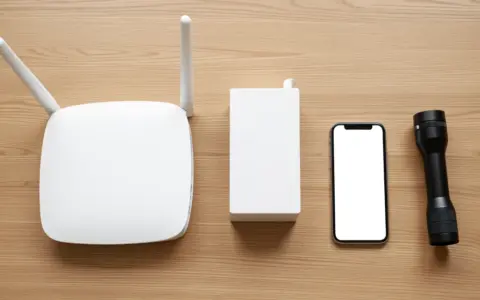
Test several fixed locations with the same phone or laptop, at roughly the same time, while standing still. First test close to the router, then in the problem room, then halfway between. Record whether the device shows a weak signal, stays connected but loads slowly, or loses internet while still showing Wi-Fi. Repeat on another device if possible. If every location is slow, including beside the router, investigate the internet connection or gateway before treating the room as a dead zone.
Separate signal trouble from internet trouble
Wi-Fi is the local wireless link between a device and the home network. Internet service is the connection beyond that network. A provider outage, damaged line, account issue, or overloaded service plan will not be repaired by adding a wireless node. Check the gateway’s normal status indicators and the provider’s offline support information. Follow documented restart steps rather than repeatedly unplugging equipment at random, because some systems need a specific startup order and time to reconnect.
One misbehaving device also deserves its own test. Install current operating-system and network-driver updates from trusted sources, forget and rejoin the network if the device instructions recommend it, and compare it with another device in the same spot. Turn off a virtual private network temporarily only if you understand the privacy implications and can safely test without it. If one older client remains slow everywhere while newer devices work, redesigning the whole network may not be the most useful first response.
Improve the router position first
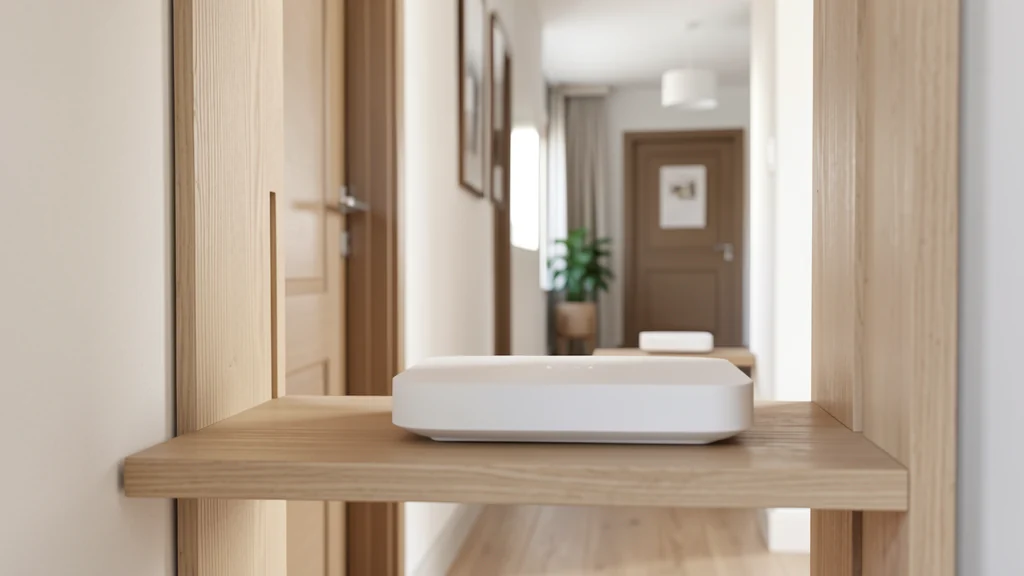
A router hidden behind a television, on the floor, inside a metal cabinet, or at one end of the home has a difficult job. When practical, place it in an open location near the center of the area that needs coverage and above floor-level clutter. Keep its vents clear and respect the manufacturer’s orientation and temperature guidance. Do not stack it on hot electronics. Even a move of several feet, or from the back of a shelf to the open front, can change the path to an important room.
The ideal radio position may conflict with where the service line enters, where power is available, or where equipment can be kept safe from children, pets, spills, and traffic. A longer approved network cable may let the router move without moving the modem, but confirm cable type and port instructions. Use proper cable supports instead of creating a trip hazard. If you need simple hand tools or cable-management supplies, this guide to a basic home toolkit can help you plan a restrained setup without buying an oversized kit.
Choose the next change by the evidence
| Observed pattern | Likely area to investigate | Low-risk next step |
|---|---|---|
| Weak signal only in distant rooms | Coverage and obstacles | Reposition the router, then retest the same marked locations |
| Good signal but slow service everywhere | Internet connection, gateway, or demand | Test near the gateway and follow provider troubleshooting |
| Problems mainly at busy times | Capacity, interference, or household traffic | Pause nonessential transfers and compare another time window |
| Only one device struggles | Client settings, software, or hardware | Update and compare that device beside a working one |
| A remote room needs steady high use | Backhaul and access-point location | Evaluate a wired access point or well-placed mesh node |
Make one change at a time and write down the result. Moving the router, changing a channel setting, and installing a new node in the same afternoon makes it hard to learn which action mattered. Use the same test locations and ordinary tasks, not only a speed-test number. A connection can post a high burst result yet still feel unstable during a long call. Look for consistent loading, reasonable response, and fewer disconnects across several days.
Reduce avoidable interference and congestion
Nearby networks and household electronics share radio space. The effect changes by band, device, construction, and distance, so do not assume that one appliance is automatically the culprit. Compare performance while a suspected device is idle and active, without opening or modifying it. Keep the router away from dense clusters of electronics where practical. Automatic channel selection is often the simplest starting point; if the manual offers channel controls, change them deliberately and retain a note of the original setting.
Different Wi-Fi bands trade reach, capacity, and device support in different ways. A device may choose a band automatically, while another network exposes separate names. There is no universal best choice for every room. Follow the router’s guidance and test the actual client. Avoid forcing unfamiliar advanced settings copied from an unrelated model. Regulatory region, channel width, security mode, and compatibility can interact, and an aggressive setting may disconnect older equipment without improving the dead zone.
Decide between mesh, an access point, and an extender
A mesh system uses coordinated nodes, but the nodes still need a dependable path back to the main unit. A node placed inside the dead zone may receive the same poor connection as the laptop beside it. Position it between the router and the weak area, where it can communicate well in both directions. Mesh may simplify roaming and management, yet performance depends on layout, backhaul, hardware, and client behavior. Confirm how many nodes the vendor recommends and whether the system can use wired backhaul.
A wired access point connects back to the router by network cable and can be a strong option for a home office, detached work area, or another floor. The route must be appropriate for the building and cable type. Do not run ordinary indoor cable through unsafe spaces or improvise near electrical wiring. A qualified low-voltage installer or electrician can advise on local requirements. Basic extenders may be useful for modest needs, but check whether they create a separate network name, reduce available throughput, or complicate roaming before buying.
Plan around the rooms that actually matter
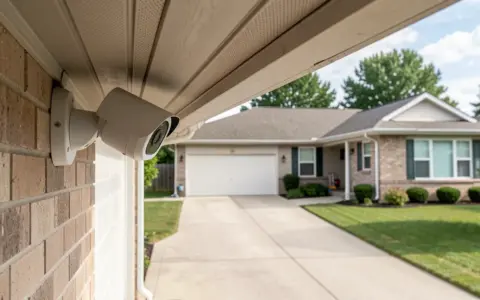
Not every corner needs identical performance. Prioritize places where people work, study, communicate, use accessibility technology, or depend on connected safety-related devices. A guest room used as an office may deserve a stable access point more than a hallway with weak bars; ideas for making a guest room useful between visits can help clarify that room’s real technology needs. For an outdoor camera or sensor, also check whether the device is rated and positioned as its manual requires.
List fixed devices that can use Ethernet. A television, desktop computer, game console, or network storage device may not need wireless service if a safe cable route exists. Moving those steady loads to wired connections can reduce competition and makes troubleshooting clearer. Ethernet is not a cure for slow provider service, and cable speed depends on the connected ports and equipment, but it can remove radio uncertainty from important stationary devices.
Secure the network while changing it
Network repairs are a good time to review the administrative account. Replace default or reused credentials with a long, unique password, enable multifactor authentication if the account offers it, and install current supported firmware through the vendor’s documented process. Use the strongest security mode that all required devices support rather than disabling protection to reconnect one old product. The Federal Trade Commission’s home Wi-Fi security guidance provides a useful institutional checklist, but settings still depend on your equipment.
Give guests a separate guest network when practical, and consider network separation for connected household devices if the router supports it and you can manage it correctly. Do not expose remote administration merely to make setup convenient. Limit who receives the main password, remove old devices and accounts, and review app permissions. These measures can reduce avoidable exposure, but no configuration guarantees that a network will never be compromised.
Know when to stop troubleshooting alone
Contact the provider when service is poor beside its gateway, status indicators show a documented fault, or the line and account require testing. Contact the router manufacturer when supported firmware, radio behavior, or configuration cannot be verified. Seek a qualified professional for new outlets, in-wall cable routes, damaged wiring, mounting near utilities, or changes restricted by a lease or building rule. Do not open power supplies, gateways, or network devices.
After the repair, keep a simple record of the equipment model, support status, network names, node locations, cable routes, and the date of the last review. Store passwords in a password manager rather than on a visible network map. Retest the marked locations after major furniture changes, construction, a provider equipment swap, or a new high-demand device. A small record makes the next problem easier to diagnose without turning the home into a permanent technology project.
Frequently asked questions
Will a faster internet plan fix a Wi-Fi dead zone?
Not necessarily. A faster plan may help when the internet connection is the bottleneck, but it does not automatically improve the radio path to a distant room. Compare performance near the router and inside the problem area before changing service.
Should a mesh node go in the room with no signal?
Usually it needs to be closer to a reliable connection, not at the weakest point. Follow the system’s placement instructions and test a position between the main router and the target room. Wired backhaul may change the best location.
Can I use the same network name on every access point?
Many coordinated systems support that design, but roaming and configuration vary. Follow the documentation for the router and access points. Avoid combining unrelated settings unless their manufacturers describe a supported arrangement.
How do I know the fix worked?
Repeat the same real-world tasks at the same mapped locations over several days. Look for stable calls, normal loading, and fewer disconnects, not only one favorable speed test. Keep the earlier measurements so improvement is based on a comparison.
A dead zone becomes manageable when it is treated as a specific network problem rather than a reason to buy the largest equipment package. Map the pattern, isolate the failing link, improve placement, and expand coverage only as far as the household needs. The result may be a router move, one wired access point, a carefully placed mesh node, or a provider repair—and the evidence should decide which.